Research
The Research interface is TwoFiftyTwo’s primary workspace. It is a conversational interface backed by all your connected data sources.
Starting a thread
Click New Thread in the sidebar to open a blank workspace. Each thread is a self-contained research session with its own history, plan, and any reports you generate.
Previous threads appear in the sidebar under Threads, ordered by recency. You can return to any thread and continue the conversation.

The prompt bar
The prompt bar sits at the bottom of the screen. Type your question and press Enter or click the send button.
Use @ in the prompt bar to access your saved Presets — reusable prompt templates for recurring question types.
Configuring a request
Three controls appear in the prompt bar alongside the text input:
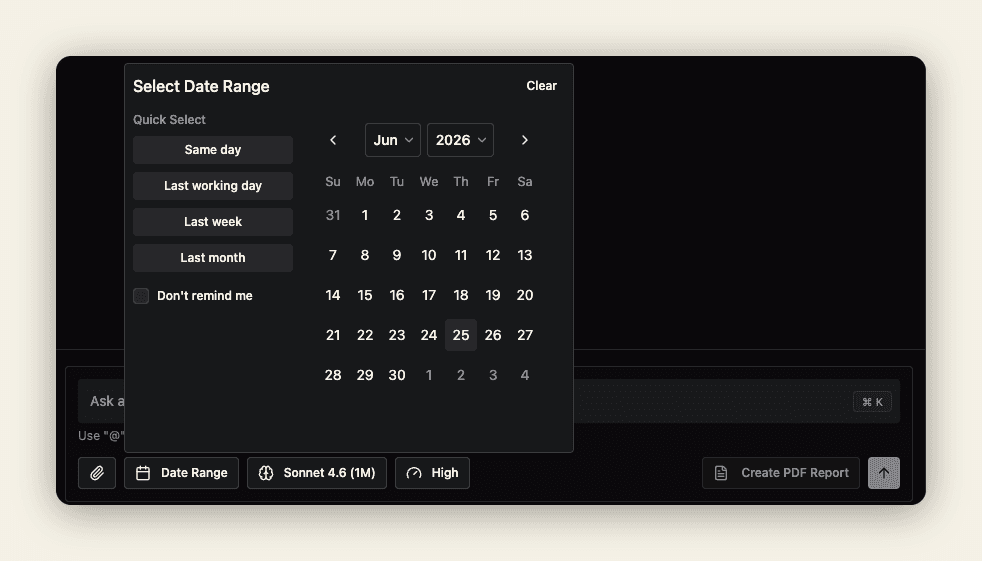
1. Date Range
Scopes research to a specific time window. When set, TwoFiftyTwo restricts evidence-gathering to documents, prices, and events within that period.
Leave this unset for open-ended questions. Set it when you need analysis tied to a particular period — for example, Q1 2024 earnings or a specific geopolitical event.
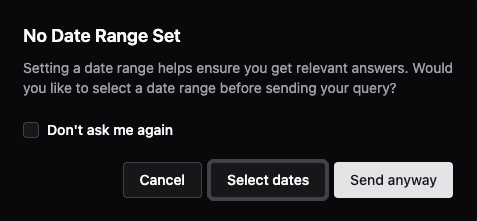
If you submit a question without a date range, TwoFiftyTwo will check whether you meant to scope it before sending:
2. Model
Selects the AI model used for the request. The default is Opus (1M), which offers a one-million-token context window — large enough to ingest entire earnings call transcripts, credit agreements, or hundreds of broker emails in a single pass without truncation.
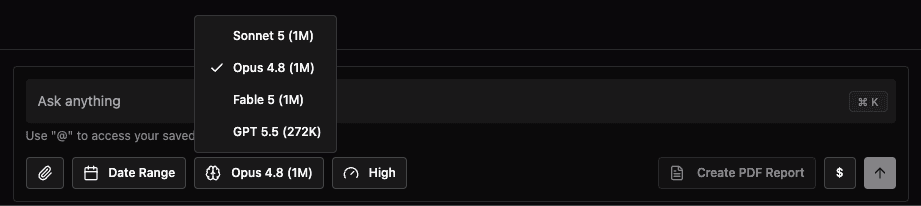
See Models & Performance for a comparison of available models and guidance on when to switch.
3. Quality
Controls the depth of the research plan. The default is High, which balances thoroughness and speed for most tasks.
Switch to Medium for quick lookups or exploratory queries, or Max when you need the most exhaustive coverage possible.

See Models & Performance — Quality settings for a full comparison of effort levels and when to use each.
How research works
When you submit a prompt, TwoFiftyTwo:
- Plans — breaks the question into research steps and shows a live plan tracker (e.g., Plan 12/18 done).
- Gathers — retrieves relevant content from your connected data sources.
- Writes — synthesises findings into structured output with inline citations.
You can watch the plan progress in the status bar below the conversation. Each step resolves before the next begins.

Citations
Every factual claim in a research response includes a numbered citation linking back to its source. Citations appear inline as superscript numbers, with a full source index at the end of longer reports.
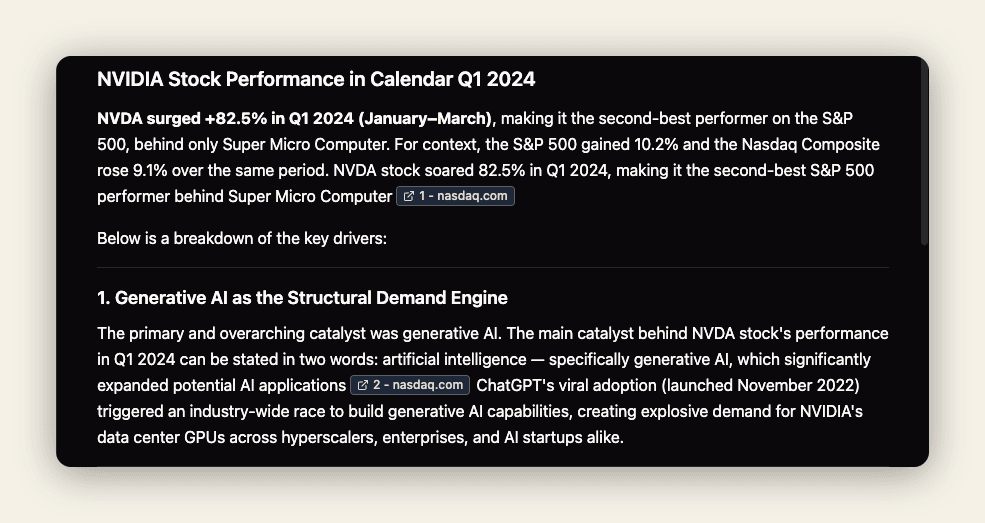
This makes it straightforward to verify a claim, read the underlying document, or share the output with a colleague who can trace the evidence.
Generating a PDF report
Click Create PDF Report in the bottom toolbar to export the current conversation as a formatted document. The report renders in the background and appears in the Reports drawer once ready — typically within one minute.
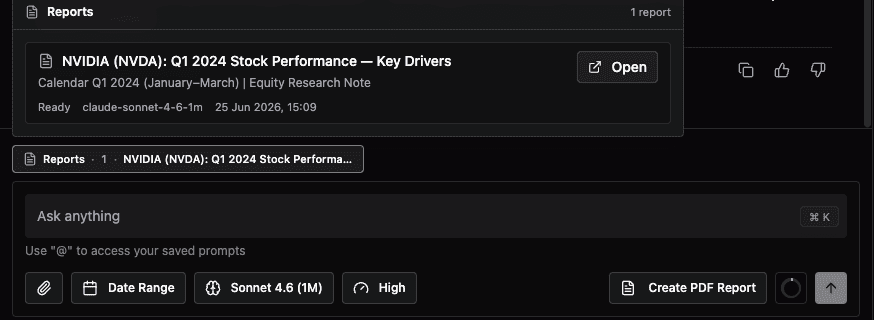
Reports are useful for sharing research output with colleagues who do not have access to TwoFiftyTwo, or for archiving a completed analysis.