Data Sources
Data Sources are the repositories TwoFiftyTwo draws on when answering a question. The more relevant sources you connect, the more comprehensive your research becomes — a single query can pull from market data, your inbox, internal documents, and the web at once.
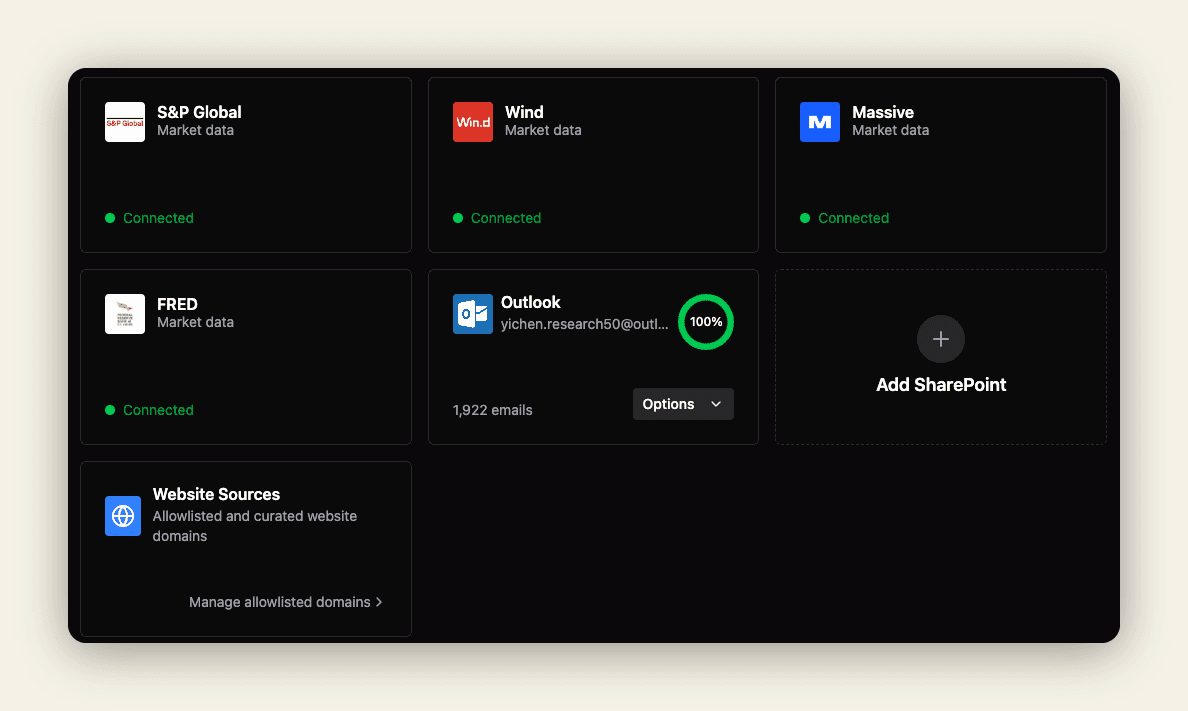
Open Data Sources in the sidebar to see every connection in one grid.
Market data
Market data providers are enabled by your administrator and require no setup on your end:
| Provider | Coverage |
|---|---|
| S&P Global | Equities, fixed income, credit, and economic indicators |
| Wind | Chinese and broader Asian markets |
| Massive | Broad cross-asset coverage |
| FRED | Federal Reserve macro series — GDP, inflation, rates, employment |
Connecting a Microsoft Outlook mailbox makes your entire inbox — and every attachment — searchable alongside your other sources. Instead of keyword-searching your mail, you ask in plain language and TwoFiftyTwo retrieves the relevant messages and PDFs by meaning. For example, “Summarise broker research on European credit from this week” pulls from the emails themselves and the reports attached to them.
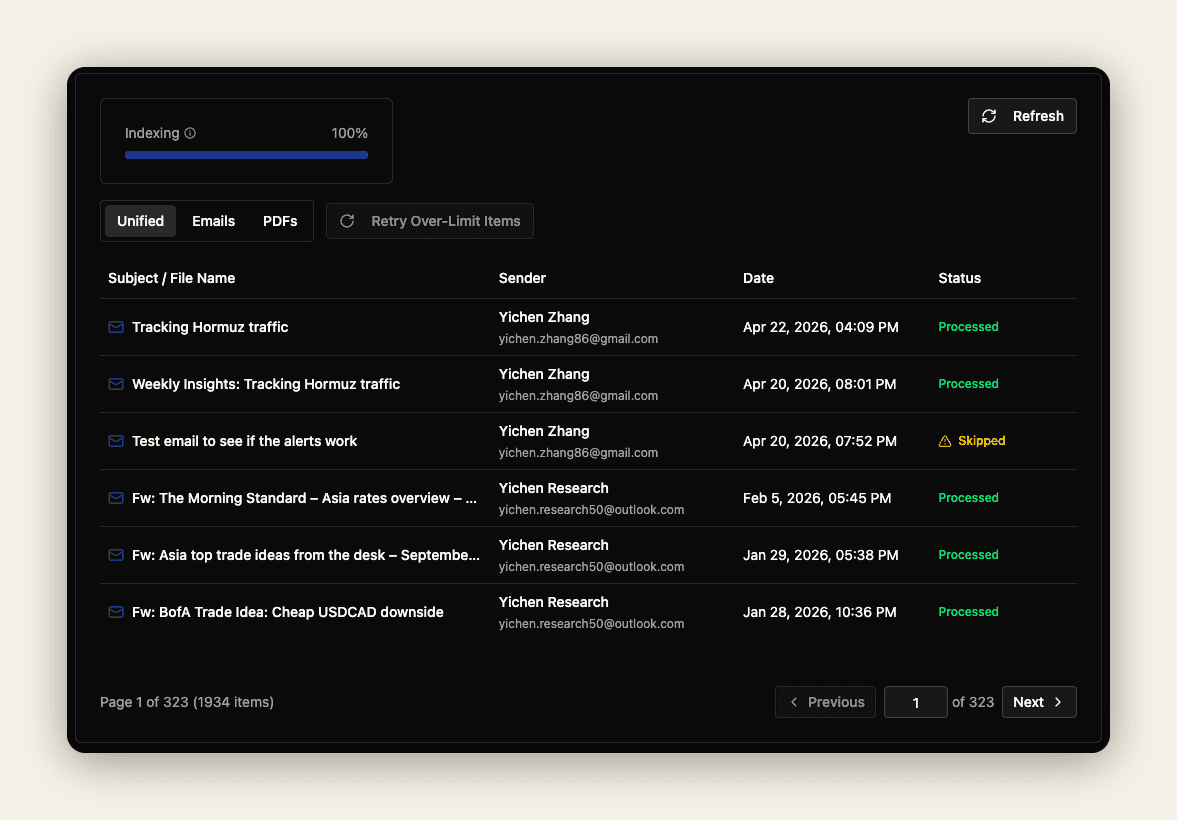
The ring around the tile shows indexing progress. When you first connect, TwoFiftyTwo reads through your mailbox and builds a searchable index; the ring climbs toward 100% as it works, and the count beneath the tile (e.g. 1,922 emails) shows how much is ready. Research keeps improving as coverage grows.
To connect: click Options → Connect on the Outlook tile and sign in with your Microsoft account.
SharePoint
Connecting a SharePoint site brings your internal documents, reports, and knowledge bases into research. Click Add SharePoint, authorise access, and choose which sites and document libraries to include.
SharePoint requires your IT team to approve the TwoFiftyTwo application in your Microsoft 365 tenant first.
Website sources
You control which parts of the web TwoFiftyTwo may read. Under Website Sources → Manage allowlisted domains, add new domains or hide existing ones. TwoFiftyTwo will only retrieve web content from domains you have explicitly approved, so research never pulls from unexpected or untrusted sites.
Trade verification
Some sources can automatically verify trade outcomes, which powers the Hit Rate feature. If verification is disabled on a source, trade ideas ingested from it won’t be scored.