Presets
Presets are saved prompt templates you can insert into any research question. They let you standardise the structure of recurring requests without retyping the same boilerplate each time.
Accessing presets
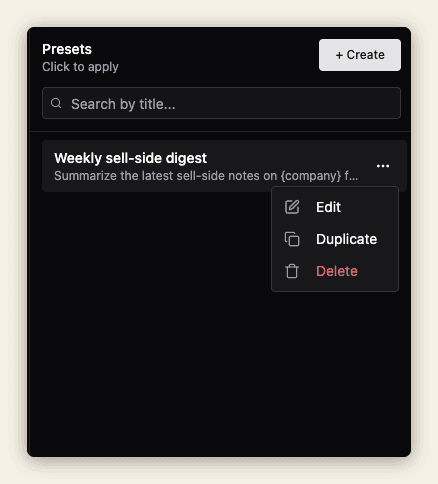
Click the PRESETS tab on the right edge of the research panel. Edit, duplicate, and delete your current presets in this menu.
Creating a preset
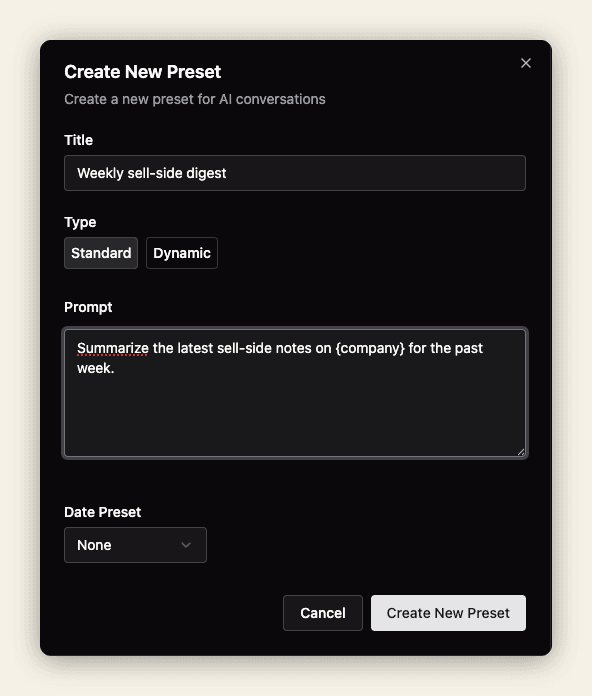
- Click the PRESETS tab on the right edge of the research panel.
- Click on the create button on the top right edge of the tab.
- Fill in the preset form with a title, type, prompt, and date.
- Click Create New Preset to add it to your presets list.
Using a preset
- Click in the prompt bar.
- Type
@and the name of the preset (or part of it). - Select the preset from the dropdown — it inserts into the prompt bar.
- Edit any variable parts before submitting.
Alternatively, apply a preset directly from the PRESETS tab mentioned above.
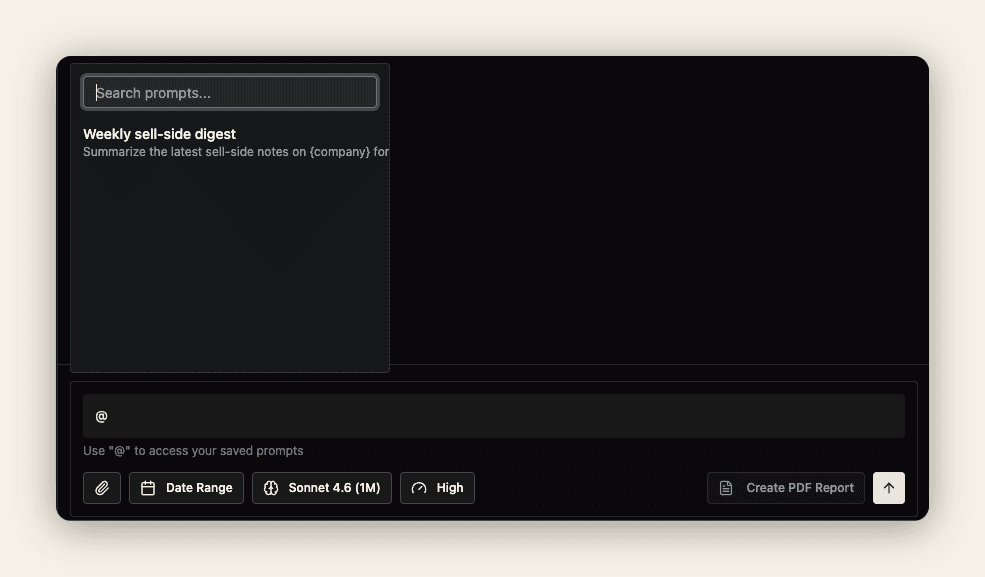
Presets insert as editable text, not locked templates. You can adjust dates, company names, or any other parameters before running the query.
What makes a good preset
Presets work best for prompt structures that repeat with minor variations. Good candidates:
- Recurring briefing formats — a morning macro briefing with a fixed structure where only the date changes
- Standard analysis templates — a credit analysis template you apply to different issuers
- Output format instructions — a formatting block you append to any prompt when you need PDF-ready output
Avoid saving highly specific one-off prompts as presets — they clutter the list and are rarely reused. Save the pattern, not the specific instance.
Presets and Analysts
Presets and Analysts solve related but different problems. A preset speeds up how you type a prompt — it still requires you to submit it manually. An Analyst runs the prompt automatically on a schedule. If a preset is something you use every day at the same time for the same purpose, consider turning it into an Analyst task instead.