Analyst
An Analyst is an AI agent you configure to run research tasks automatically, on a schedule, without manual prompting. Use Analysts to automate any research workflow that recurs on a predictable cadence — daily briefings, earnings monitors, credit watches, or weekly market summaries.
What an Analyst does
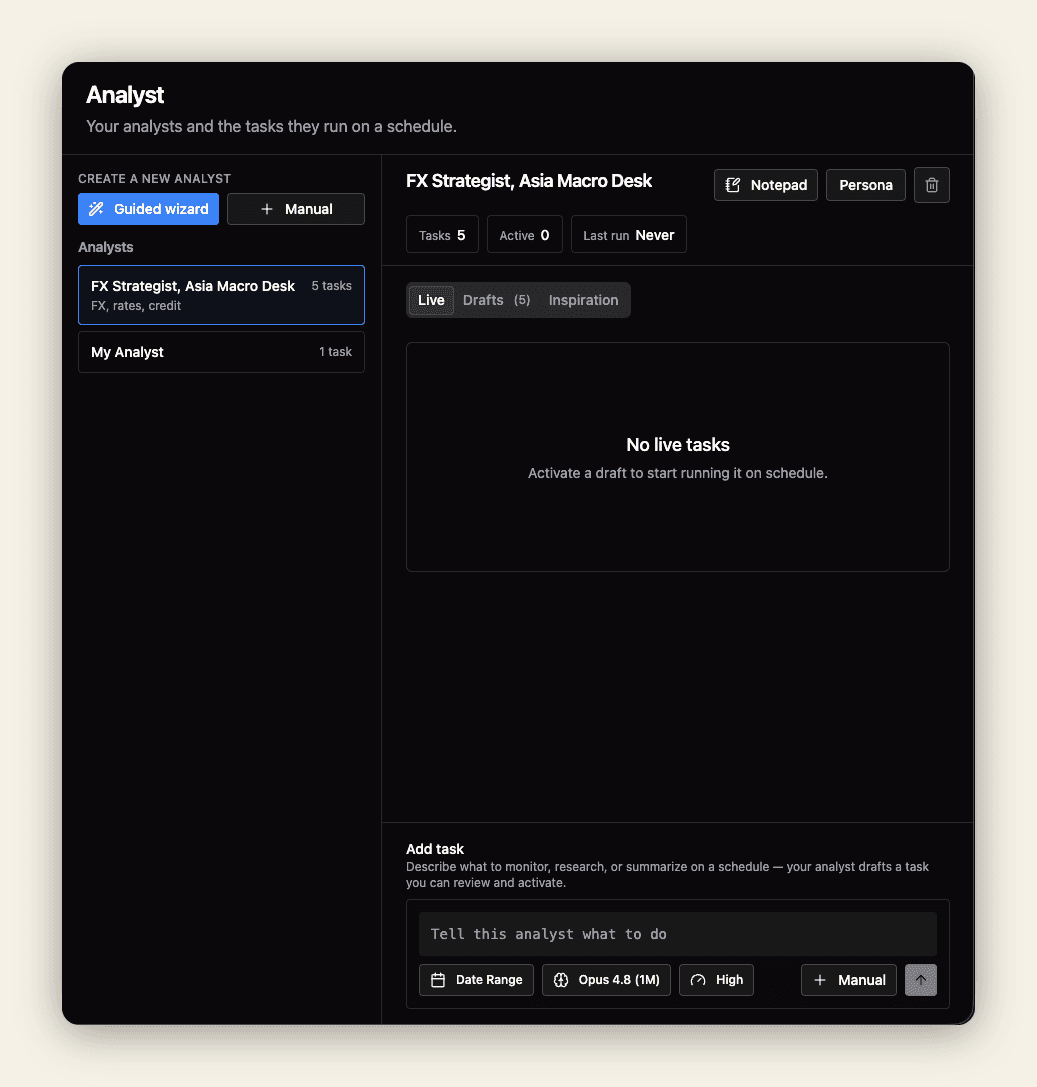
An Analyst runs one or more tasks at intervals you define. Each task is a research prompt that the Analyst executes independently, producing output you can review, share, or act on. Results appear in your Analyst dashboard and can be pushed to Slack or Teams.
Creating an Analyst
Navigate to Analyst in the sidebar. You can create an Analyst in two ways:
Guided Wizard
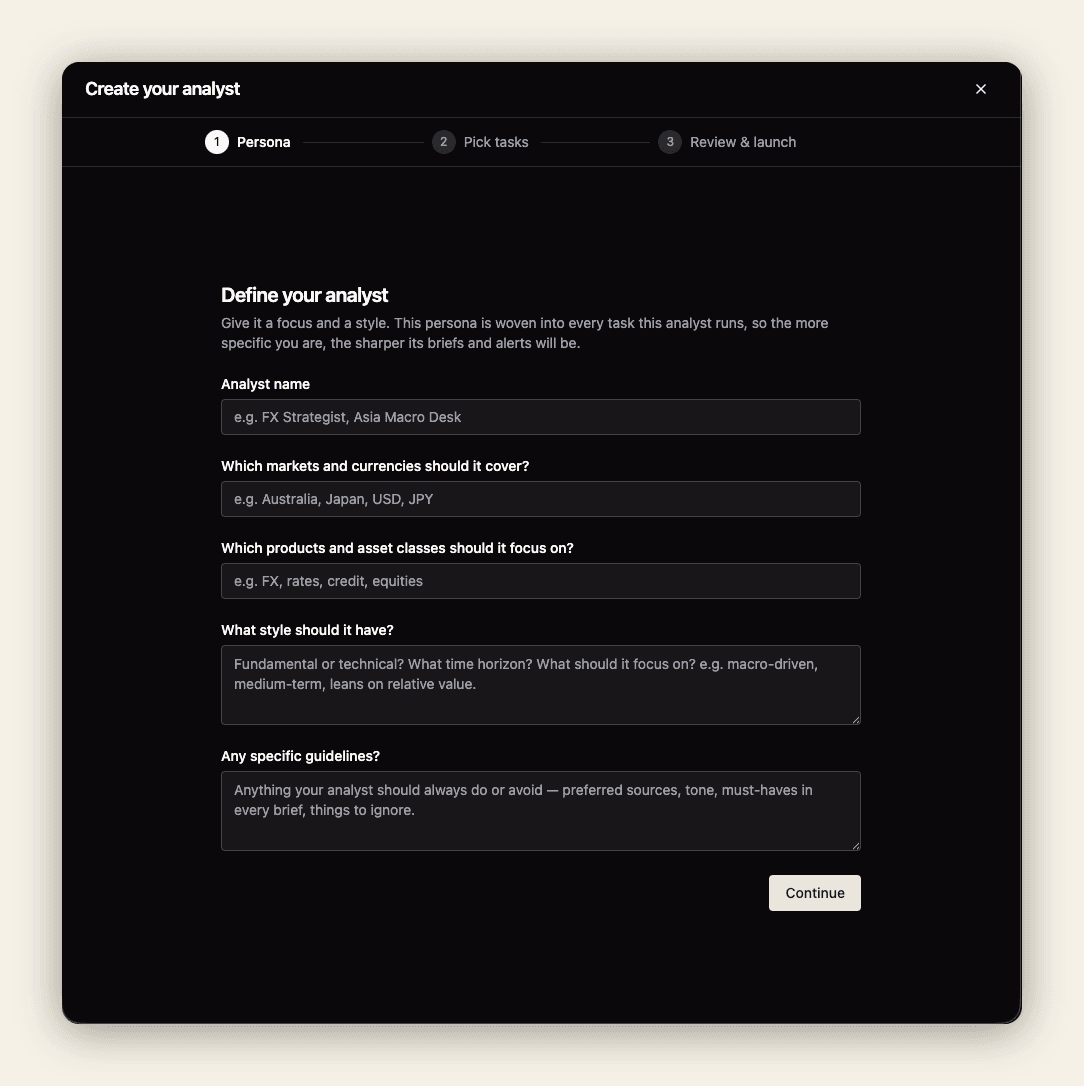
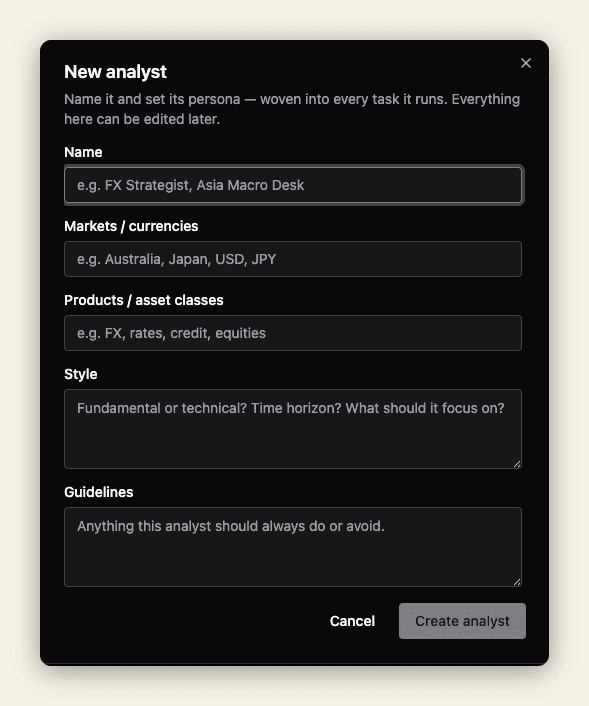
The guided wizard walks you through naming the Analyst, setting a persona, and adding your first task with suggested cadences and example prompts. Use this when you are setting up an Analyst for the first time or want a structured starting point.
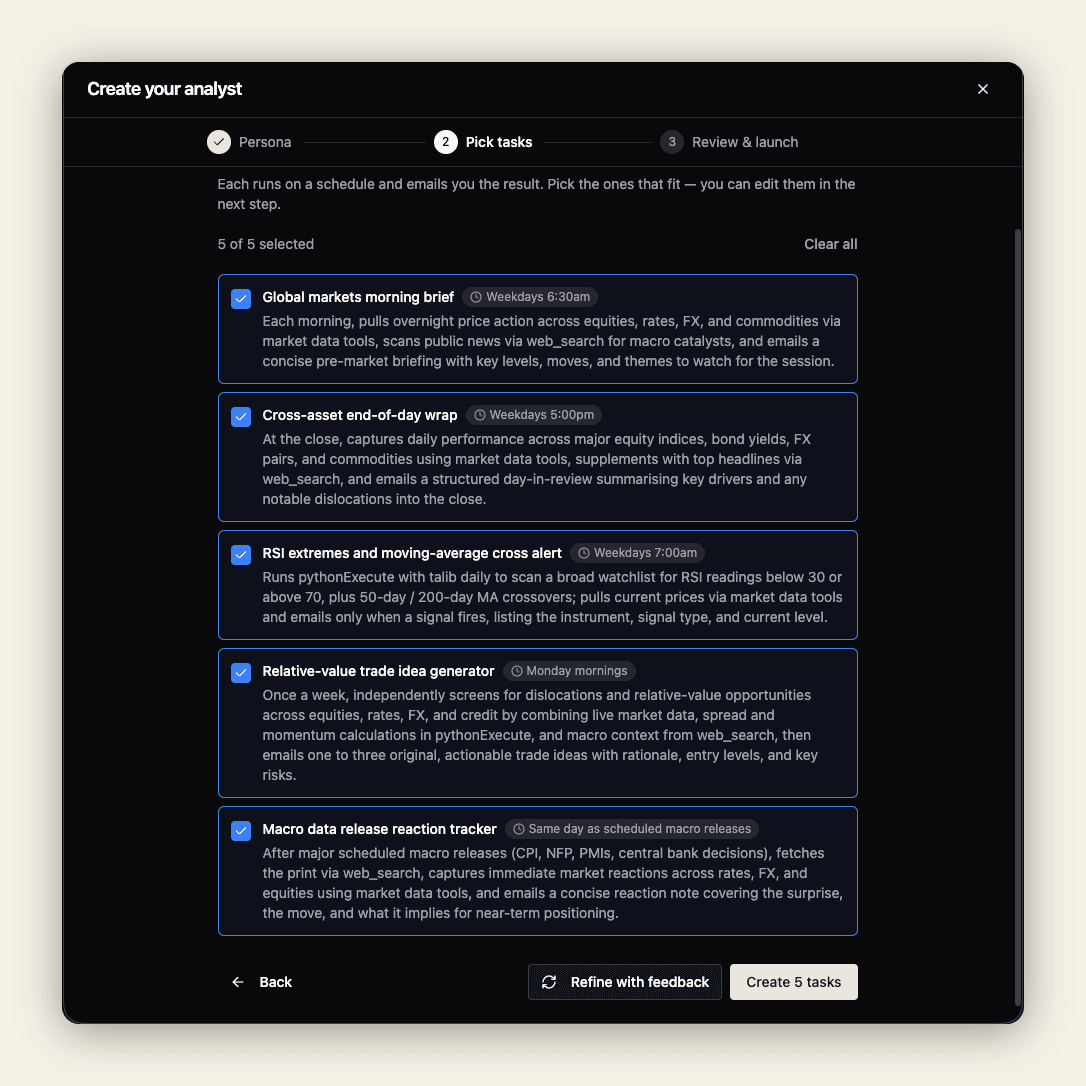
The wizard then suggests a set of tasks tailored to the persona you described — pick the ones you want, or refine with feedback.
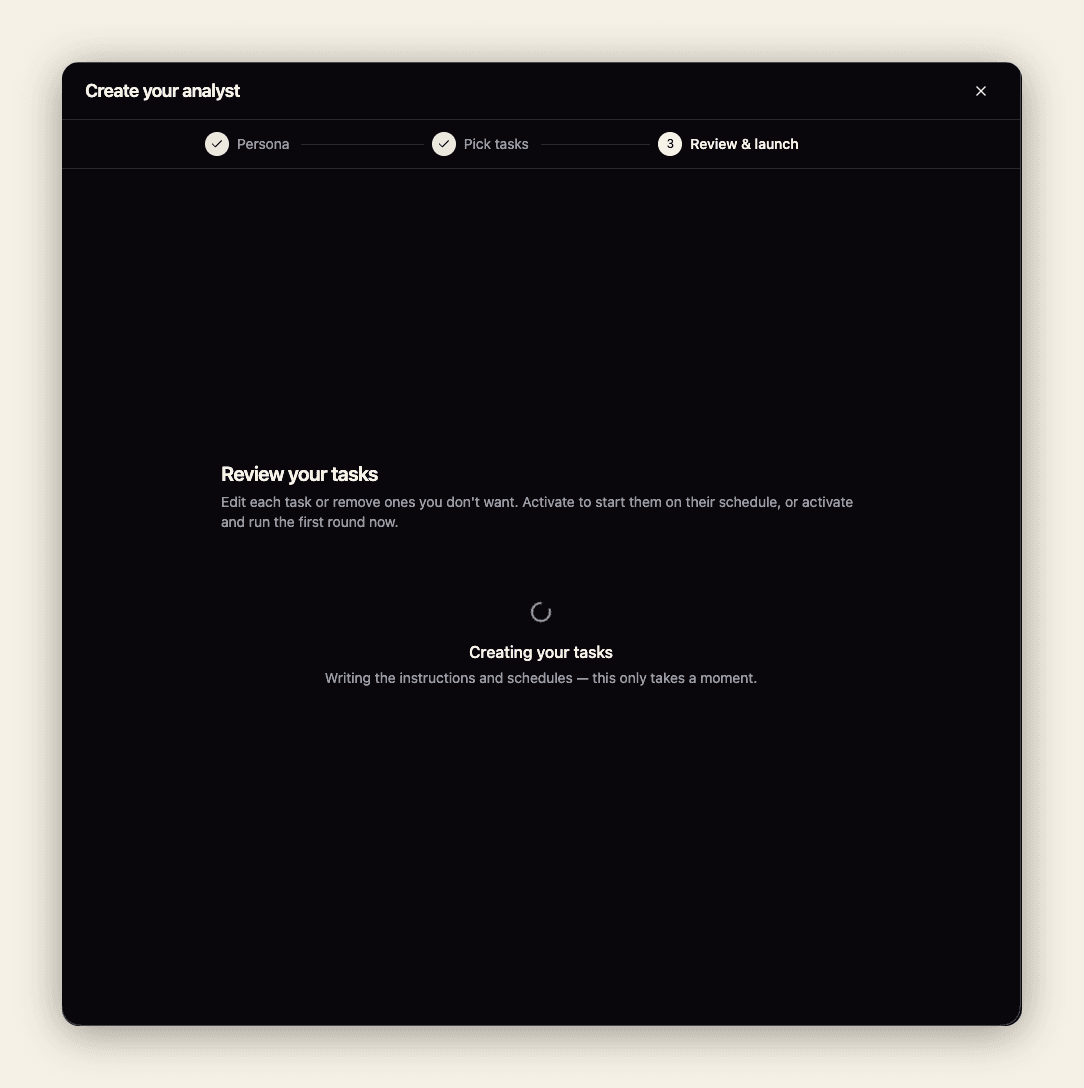
The final step writes the instructions and schedule for each selected task. From here you can save them as drafts, activate them, or activate and run immediately.
Manual
The manual path gives you direct access to all configuration options without the wizard flow. Use this if you already know what you want and want to configure it quickly.
Persona
Each Analyst has a Persona — a description of its role, focus, and style. The persona shapes how the Analyst frames its research and writes its output.
A well-written persona:
- Names the domain the Analyst covers (“You are a credit analyst focused on European investment-grade issuers.”)
- States the intended audience for the output (“Output is for consumption by the portfolio management team.”)
- Specifies any standing preferences for format or depth (“Lead with a summary paragraph, then bullet key risks.”)
See the Task Guide for more on writing effective personas and tasks.
Tasks
Each Analyst can have multiple tasks. A task is a specific research job with its own prompt, data scope, and schedule.
Tasks have two states:
- Draft — the task exists but is not running. Review and edit drafts before activating them.
- Live — the task runs on schedule. Live tasks appear in the Live tab of the Analyst dashboard.
Activate a draft by toggling it to Live from the Drafts tab.
Scheduling
Each task runs on an interval you configure — daily, weekly, or at a custom cadence. The last run time and next scheduled run appear in the Analyst dashboard.
Tasks use the same Date Range, Model, and Quality controls as the Research interface. Set these per-task based on what the task needs.
Inspiration
The Inspiration tab inside each Analyst shows example task ideas suited to common financial research workflows. Use these as starting points or to spark ideas for tasks you had not considered.
Reviewing output
Each time a task runs, the output is stored in the task history. Navigate to the task to see all previous runs and their results. You can open any run in a research thread to ask follow-up questions or generate a PDF report.